This page collects several use cases for Shelley to find and build tools. If you are new to Shelley and want a guided tour of how it fits together, see the Getting started with Shelley tutorial first.
Find a tool you know by name
Say you already know you need fastqc. Look it up with find:
shelley find fastqc
Example output
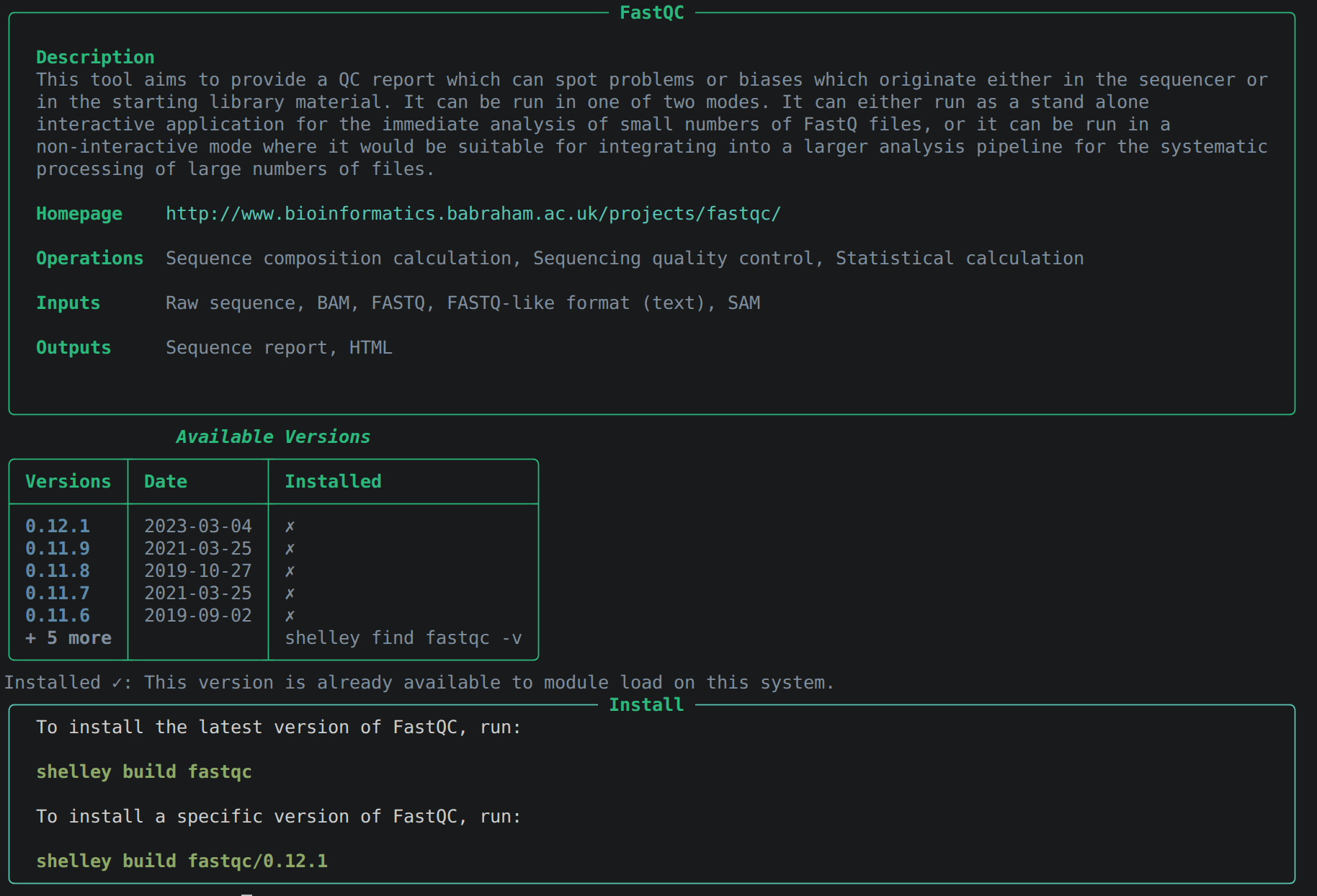
Shelley returns the tool’s description, its most recent container versions, and whether it is
installed as a module yet. find is forgiving about naming: case, hyphens, and underscores are
all handled for you, so shelley find STAR, shelley find bwa-mem2, and shelley find samtools
all work as expected.
See every available version
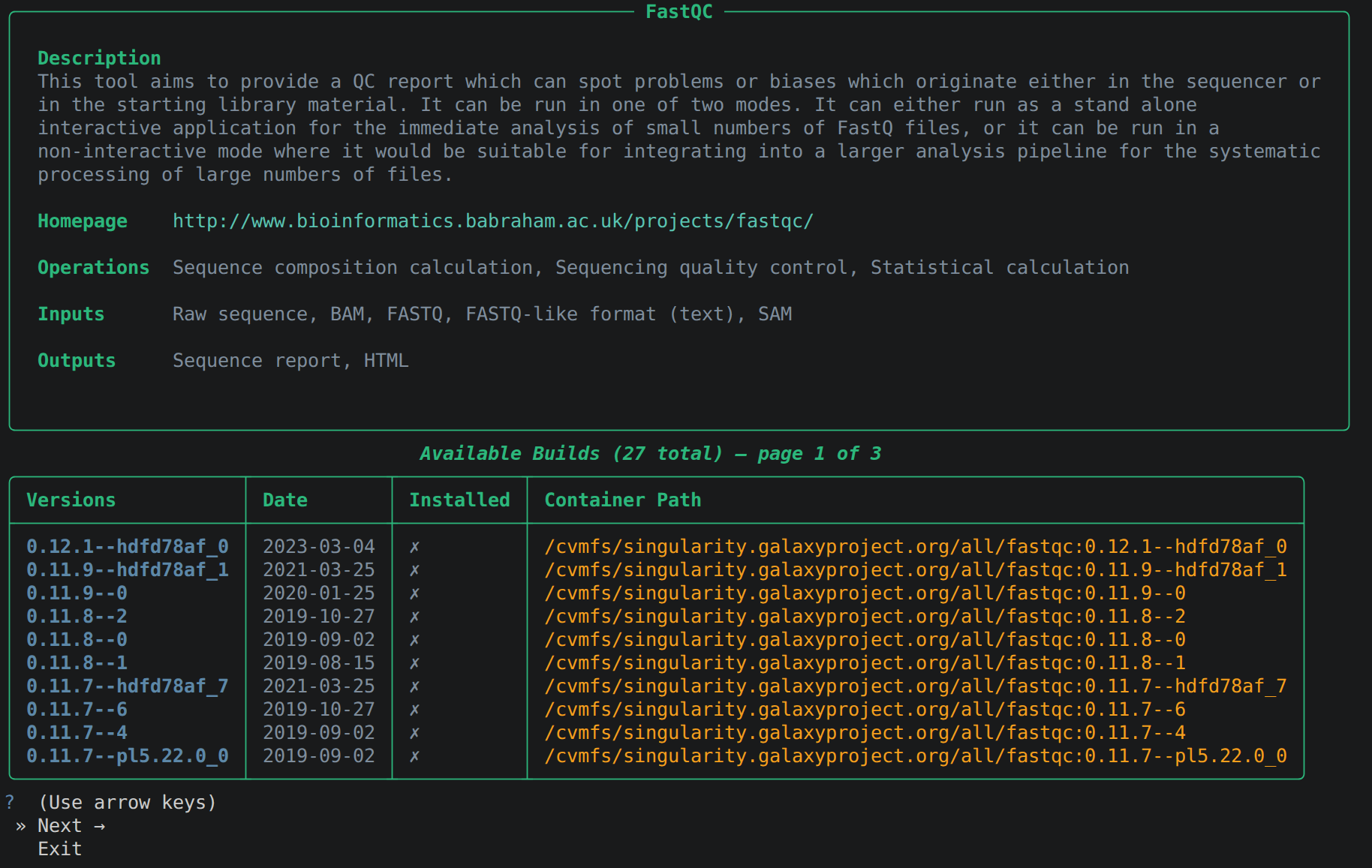
By default find shows only the most recent versions of a tool. To pin an exact version for
reproducibility, or to match a pipeline’s requirements, add the -v (verbose) flag to see every
available container, newest first:
shelley find fastqc -v
Example output
Search when you only know the task
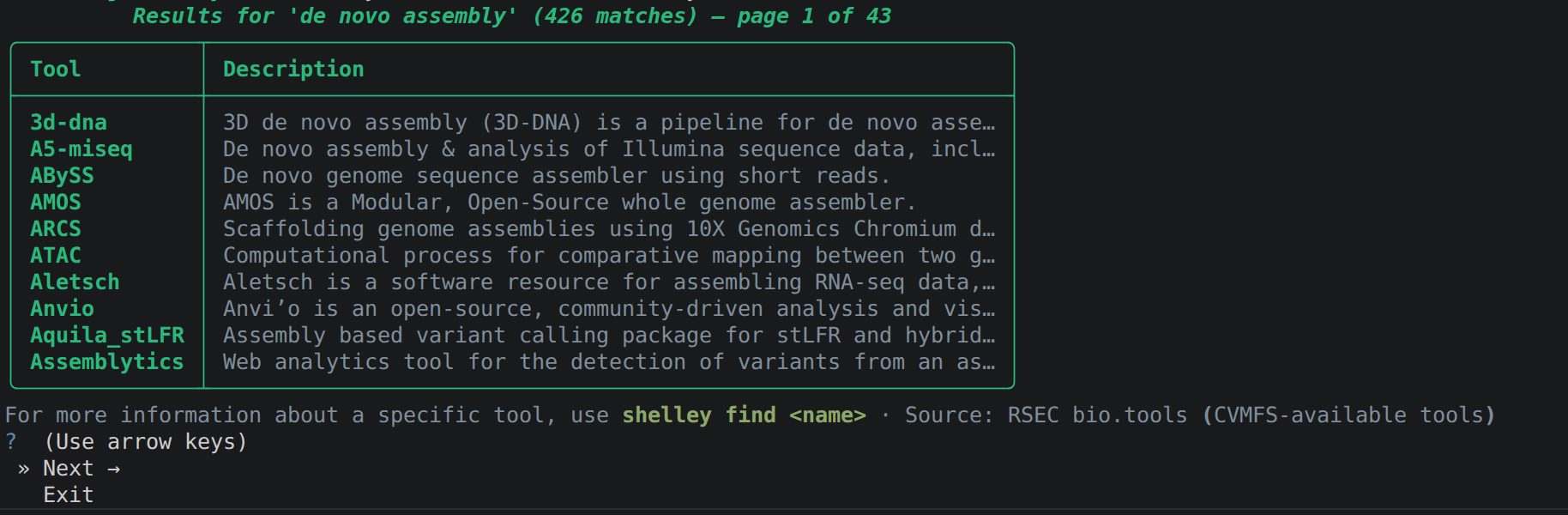
Sometimes you know what you want to do but not which tool does it. That’s what search is for:
shelley search "quality control"
shelley search "variant calling"
shelley search "de novo assembly"
Each result shows the tool name and a brief description of what it does. Shorter, more specific phrases work better than full sentences — every extra word broadens the match rather than narrowing it, so remove words rather than adding them if you get too many results.
Example output
Build the module
Once you know the tool and version you want, build its module with shelley build:
shelley build fastqc
This installs the most recent available version by default.
Example output
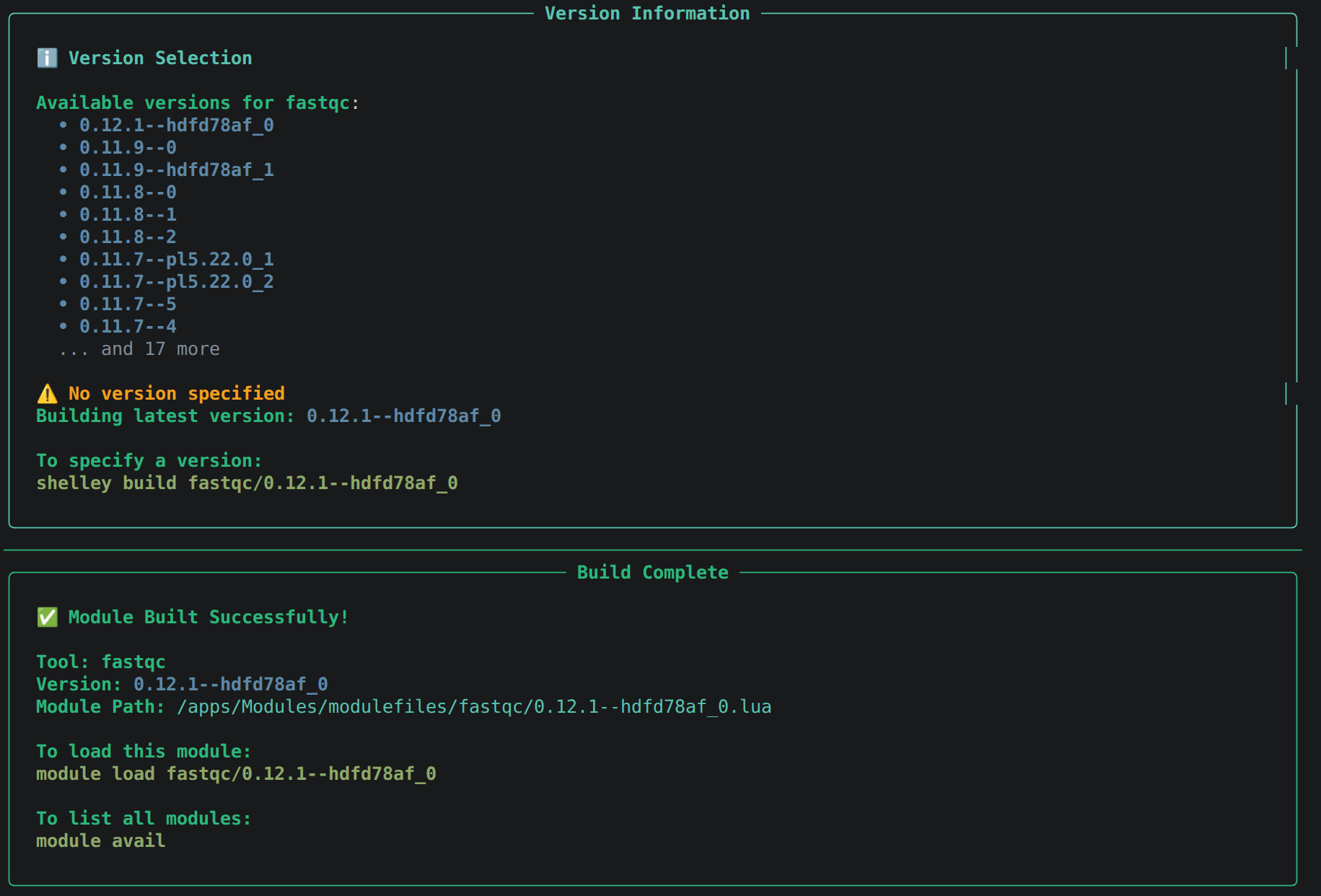
build the same <tool>/<version> spec that find -v showed you, for example shelley build fastqc/0.12.1.Load and run the tool
Load the module the same way you would on any HPC system, then run the tool:
module load fastqc
fastqc --version
# FastQC v0.12.1
That’s the whole loop, and it is the same for every tool: find, build, load, run. When you are ready for more, How to use Shelley covers the other use cases that will come in handy.
How-to install bwa-mem2
This worked example uses bwa-mem2 to demonstrate the steps to use and apply to any tool in the CVMFS catalogue.
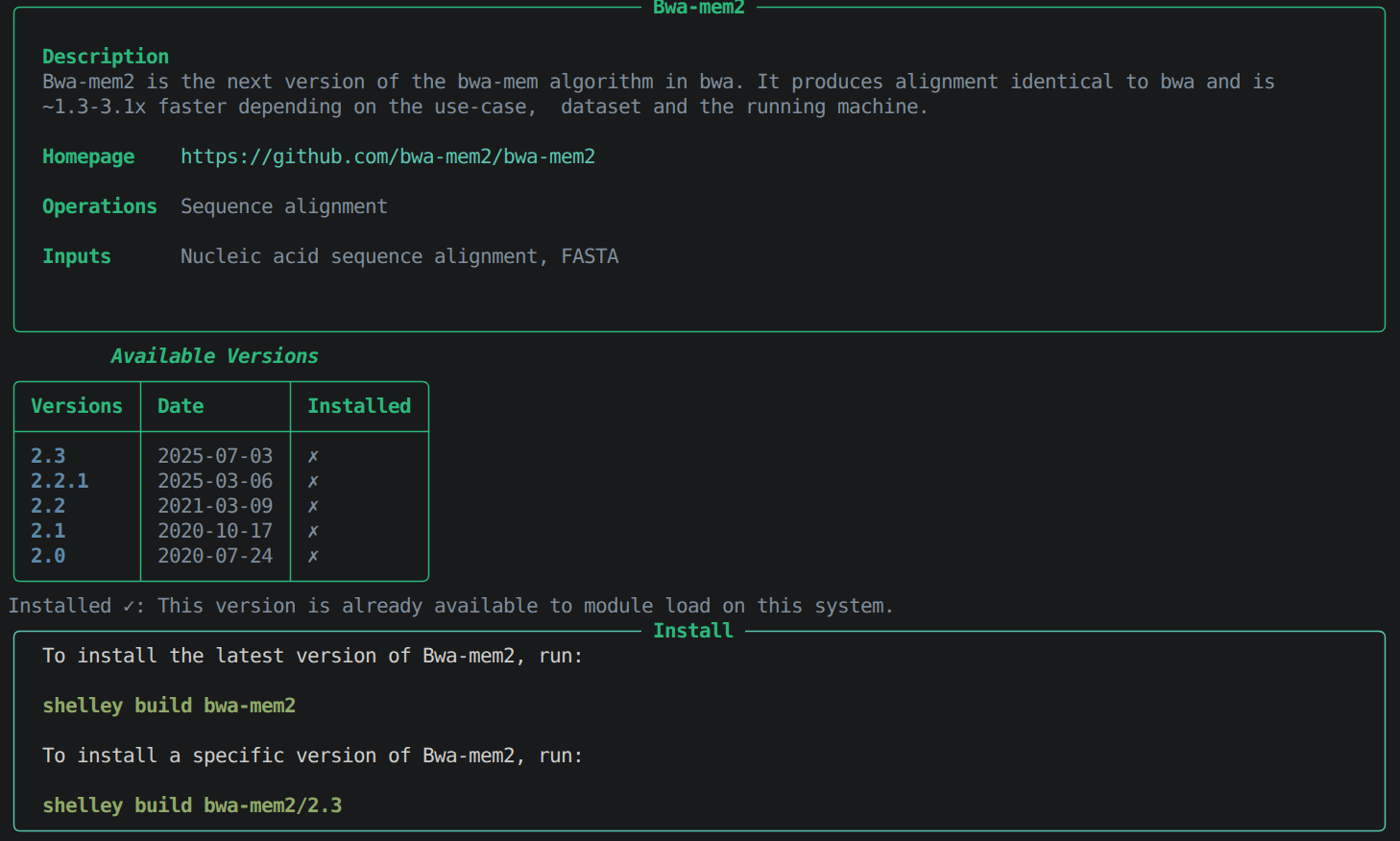
1. Use shelley to look up bwa-mem2 and the available versions
shelley find bwa-mem2
Show output
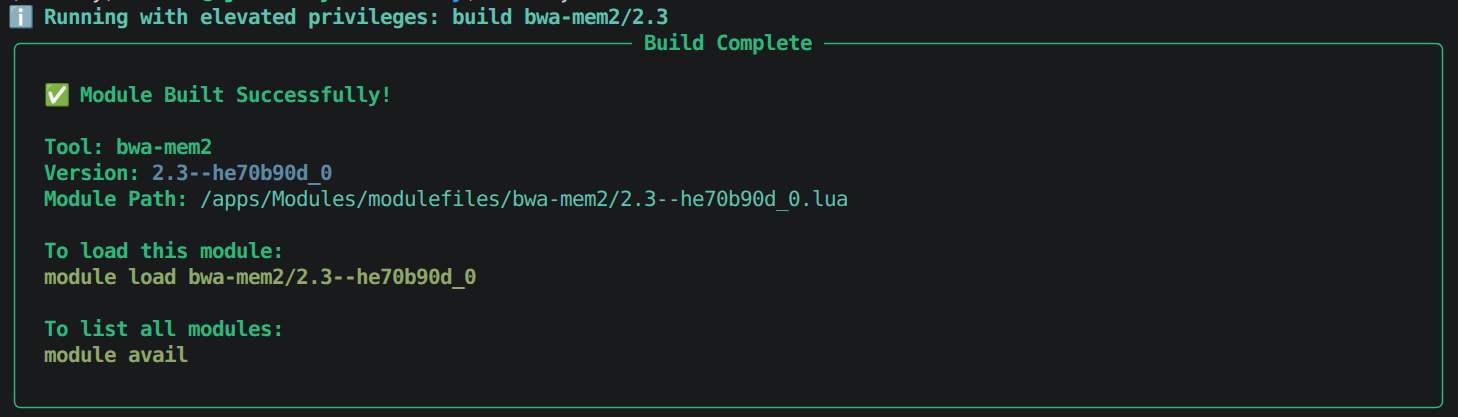
2. Build a loadable module
shelley build bwa-mem2/2.3
Show output
3. Confirm the module was built succesfully
module avail
bwa-mem2 is listed alongside the other pre-built BioShell modules.
Show output

4. Load the module
module load bwa-mem2
5. Finally, run bwa-mem2
bwa-mem2 version
# 2.2.1
You now have a working bwa-mem2 module built from the BioContainers catalogue.
The same five steps: find, build, confirm, load, run - apply to any tool available
through Shelley.
shpc install by hand? See why Shelley over manual sHPC in the Shelley docs.How-to bulk install a list of containers
If you need several modules built at once, for example, all the tools a pipeline
depends on, you can pass shelley build a plain-text file listing one tool spec per line
instead of building each tool individually.
1. Create tools.txt with the following contents
# qc tools
fastqc

# Core alignment tools
# some tools have versions specified for reproducibility
samtools/1.21
bowtie2/2.5.1
bwa-mem2
Each line accepts the same format as a single-tool build call:
<tool>,<tool>/<version>, or<tool>:<version>--<hash>
Blank lines and # comments are ignored, so you can group and annotate the list.
2. Run the build command:
shelley build tools.txt
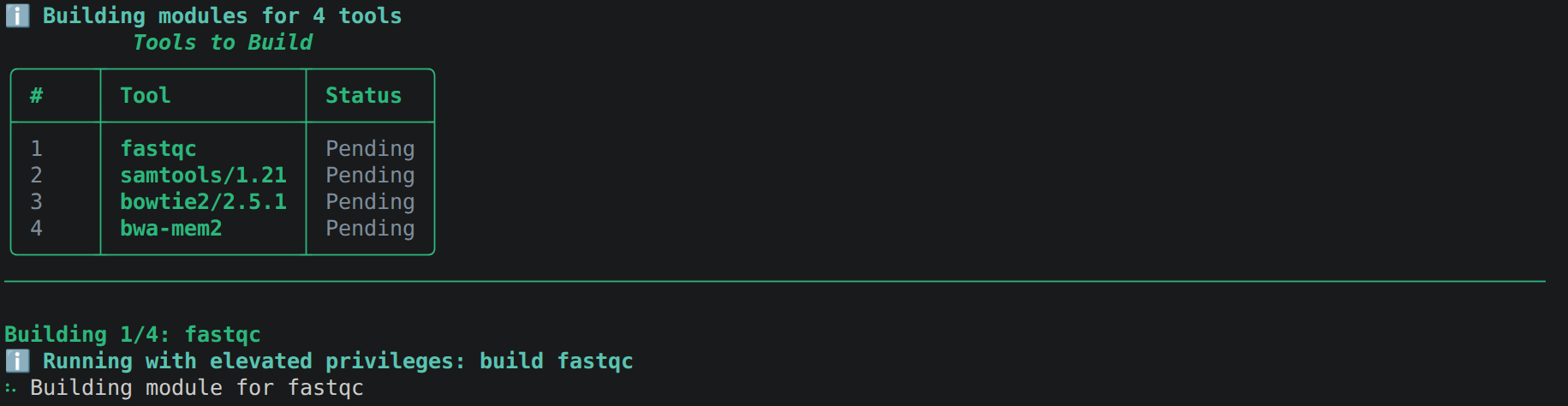
Shelley builds each tool in the file in sequence, showing a progress table as it goes.
Show output
3. If a tool has more than one build for the same version (for example, several
--hash builds of samtools/1.21), Shelley pauses and asks you to pick one.
Show output
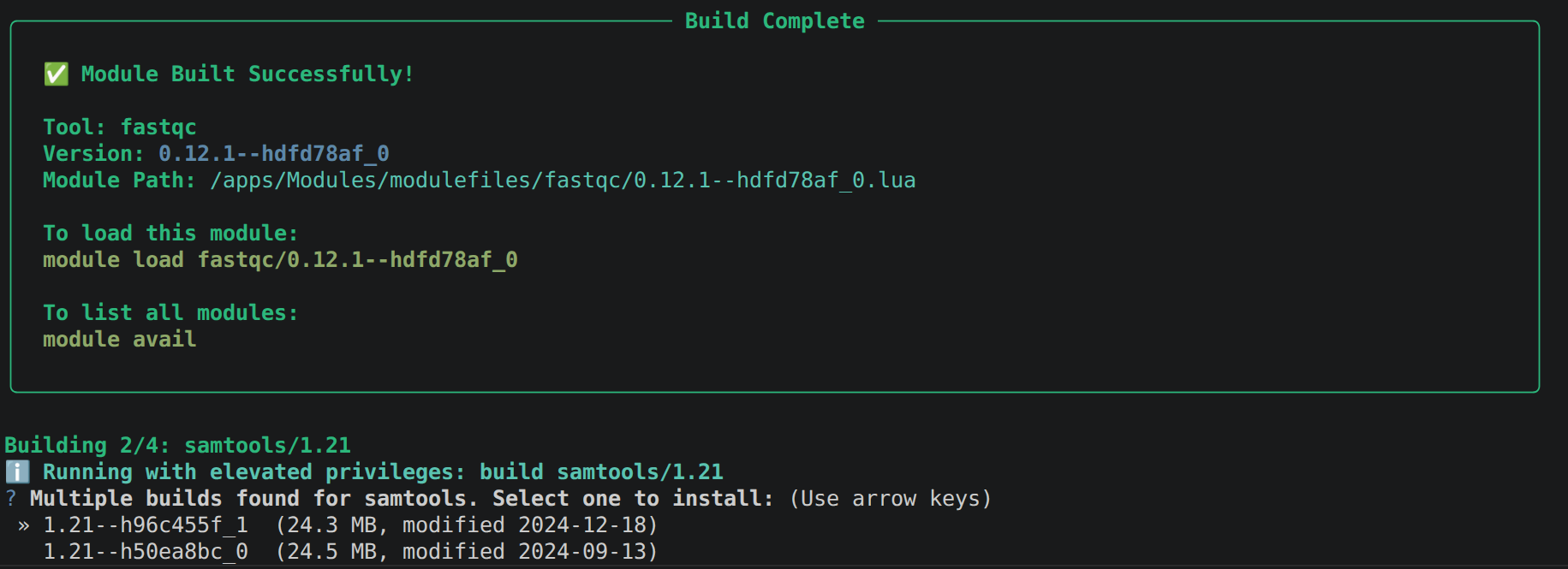
Use the arrow keys to select a build, then press Enter to continue building the tools.
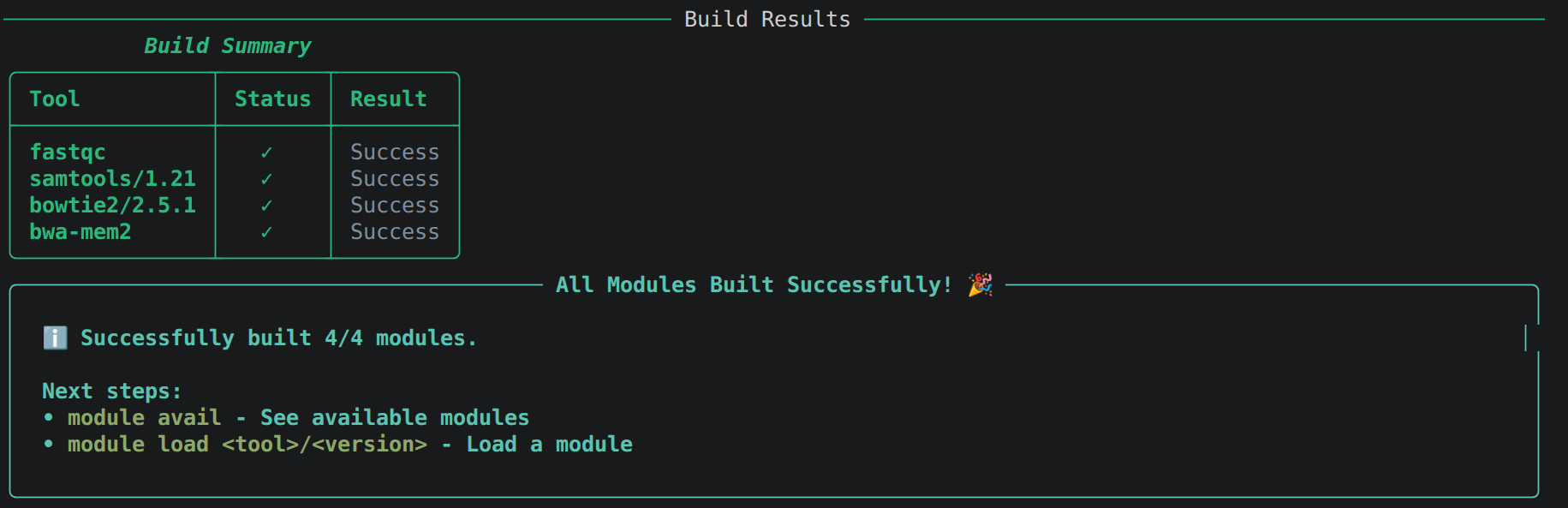
4. Once every tool has been built, Shelley prints a summary, and the modules are available to load.
Show output
module avail
---------------------------------------------------------- /apps/Modules/modulefiles ----------------------------------------------------------
   R/4.3.3           bowtie2/2.5.1--py39h6fed5c7_2    fastqc/0.12.1--hdfd78af_0    nextflow/25.10.4    rstudio/2023.12.1
   ansible/2.16.3    bwa-mem2/2.3--he70b90d_0         jupyter/2026.04              nf-core/3.5.2       samtools/1.21--h96c455f_1

---------------------------------------------------------- /opt/Modules/modulefiles -----------------------------------------------------------
   shpc (L)    singularity (L)

  Where:
   L:  Module is loaded
How-to find the full CVMFS path of containers
Some workflows need the exact CVMFS container path rather than a loaded module. For
example, a Nextflow process configured to pull a container directly instead of using
module load. Use find -v to to list every individual build of a tool together
with its full CVMFS image path:
shelley find fastqc -v
Show output
Each row corresponds to one --hash build of a version, with its buildable/installed
status and the path you can copy into a config file, such as:
/cvmfs/singularity.galaxyproject.org/all/fastqc:0.12.1--hdfd78af_0
See Using Nextflow with CVMFS for a worked example of pointing a Nextflow process at a container path like this.
How-to build a tool that isn’t in the sHPC registry
Building an Lmod module requires a registry entry describing the container. sHPC’s shpc-registry supplies these for most tools, but it doesn’t cover every version. Very new containers, and containers built before a tool was added to the registry, often have no entry at all.
You don’t need to know whether a version is registered, as shelley build checks for you
and will build this on-the-fly.
shelley build bowtie2/2.5.1
Shelley diffs the container against its base-image manifests to work out which files are the tool’s own, so the module’s aliases don’t get cluttered with every binary bundled inside the container:
Show output
Generating diff for /cvmfs/singularity.galaxyproject.org/all/bowtie2:2.5.1--py39h6fed5c7_2
<truncated>
docker://docker.io/anaconda/miniconda:latest: removed 98 shared paths.
docker.io/library/busybox:1.34: removed 90 shared paths.
<truncated>
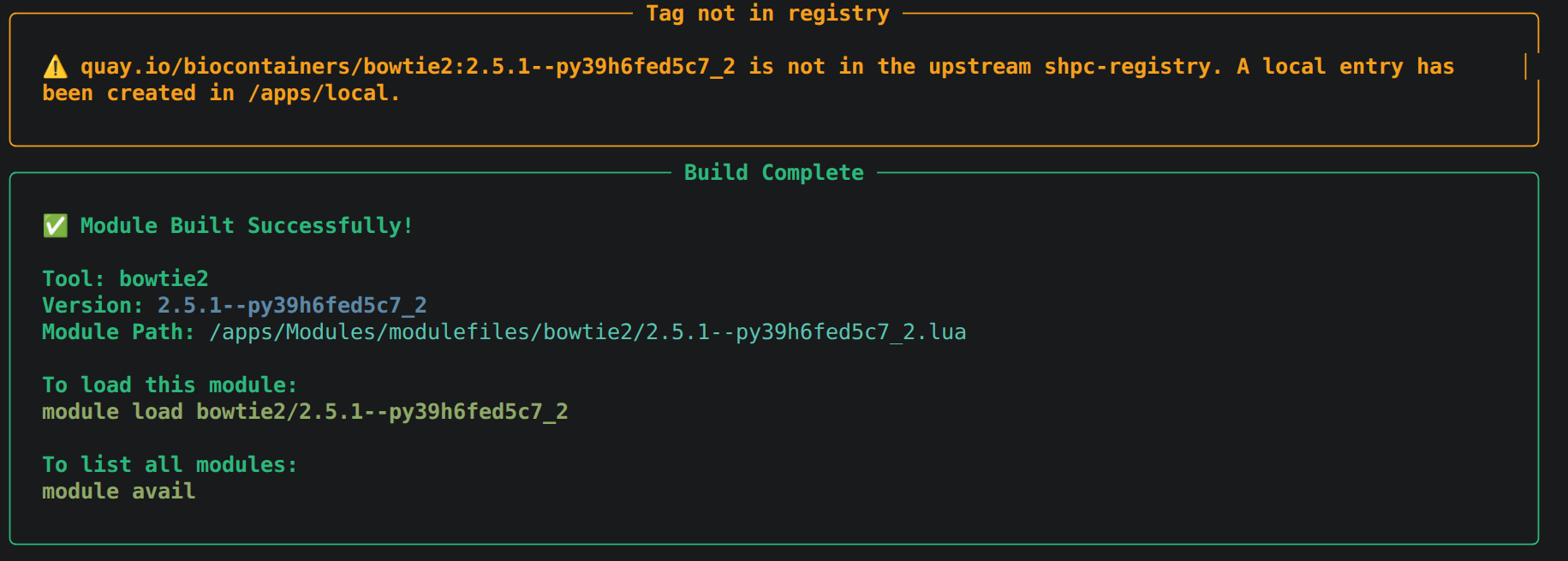
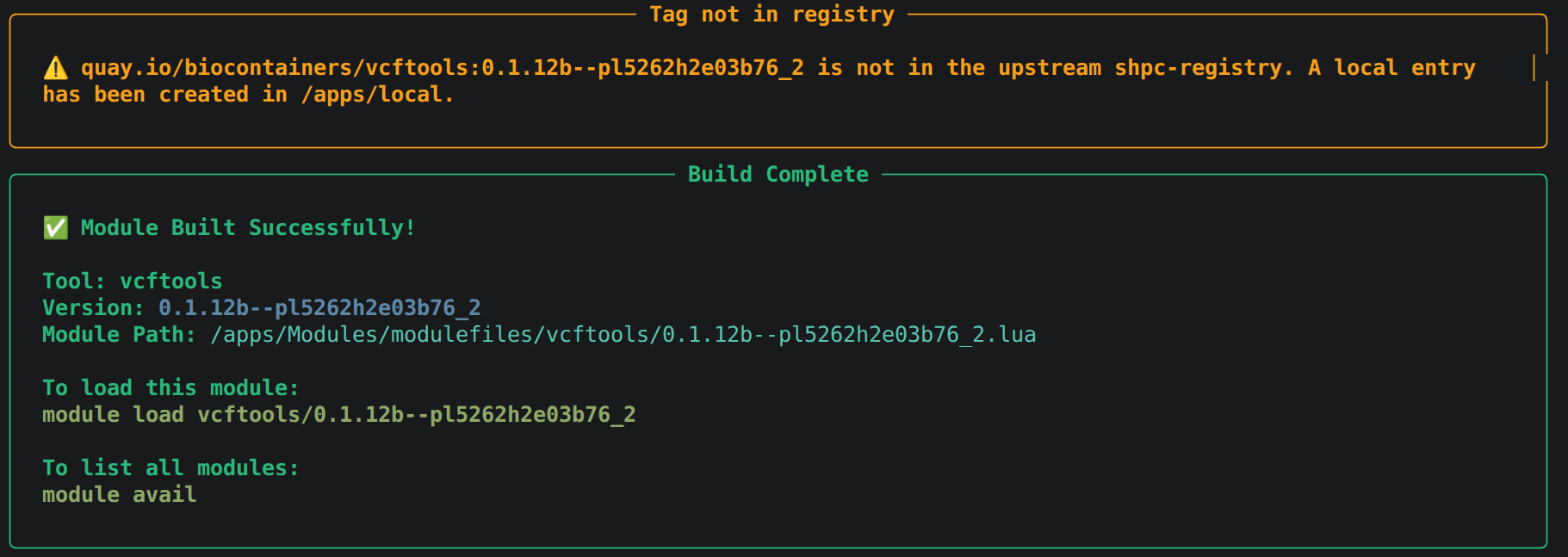
If the version is missing from the upstream registry, Shelley creates a local registry entry from the CVMFS container itself and retries the install. This is transparent and adds only a few extra minutes to the build. See Why Shelley over manual sHPC for what this replaces manually, and Build design for how the fallback works internally.
[EXPERIMENTAL] How-to amend the aliases
As noted above, a container can bundle utility binaries alongside
the tool itself, which can clutter the module’s alias list with commands you don’t
need. Add -i (or --interactive) to build to open a session where you can curate
the aliases a module exposes such as deselecting, renaming, or adding them; before the install
completes:
shelley build vcftools/0.1.12b--pl5262h2e03b76_2 -i
1. Shelley first lists every binary in the container as a candidate alias. Without curation, all of these would be exposed by the module.
Example output
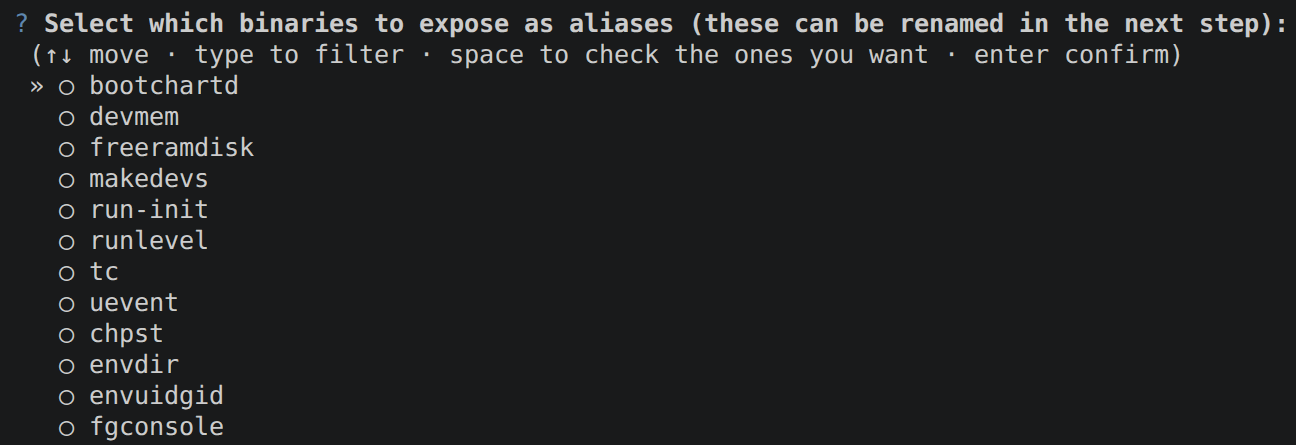
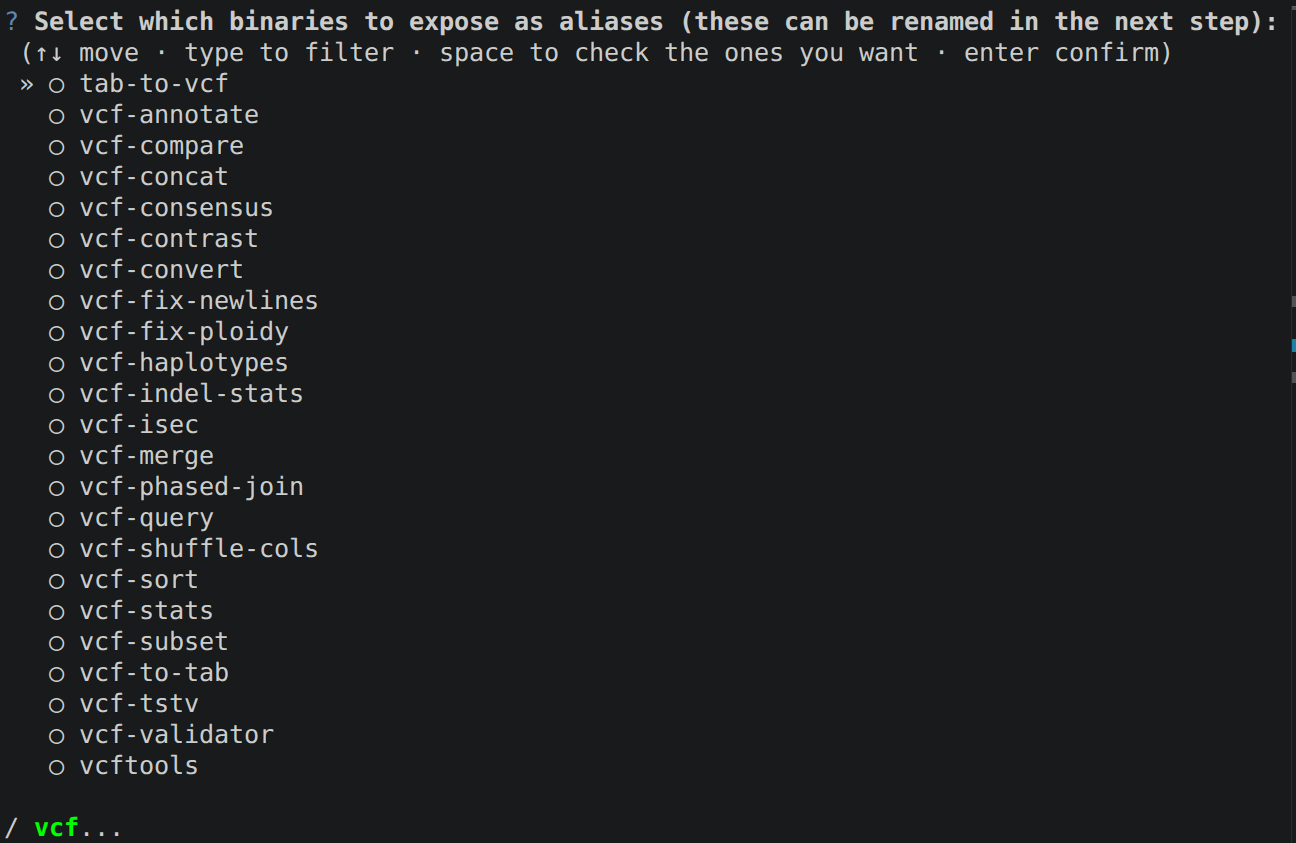
2. Type to filter the list down to the ones relevant to vcftools, for example vcf:
Example output
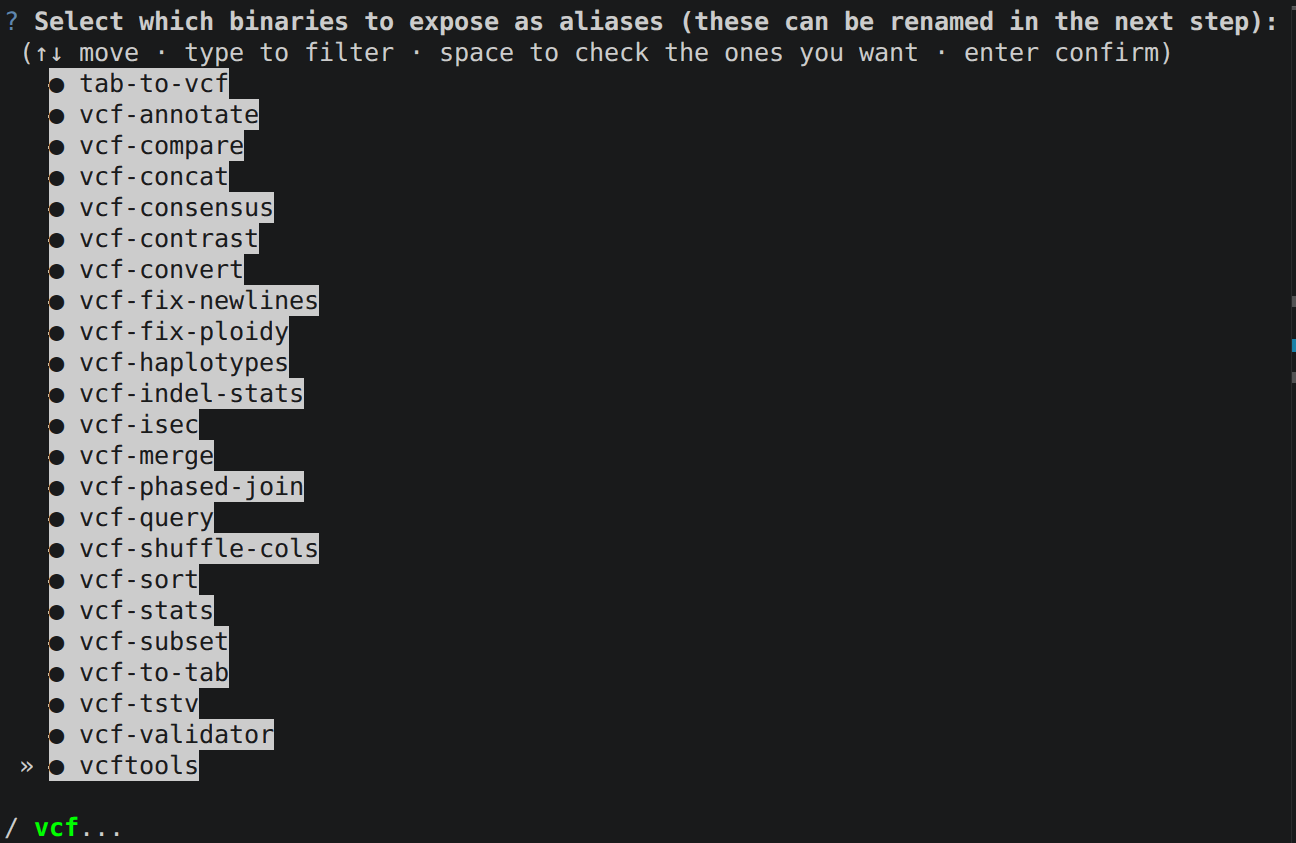
3. Toggle each one you want by pressing Space, then press Enter once they’re all selected:
Show output
4. Shelley then asks whether to add or rename any aliases. Answer n to both to keep
the selection as-is:
? Add new aliases? (y/n)No
? Rename any aliases? (y/n)No
5. The module builds with only the curated aliases exposed:
Show output